Disable Reading Mode and Protected View in Word 2013
From the archive (2013). Written for the tools of the time, so some details may be out of date.
I know it’s there for a reason, but I can’t stand the Reading View and the Protected mode in Word 2013. I don’t like the layout of Reading View, and I feel I’m smart enough to open documents I know are safe :)
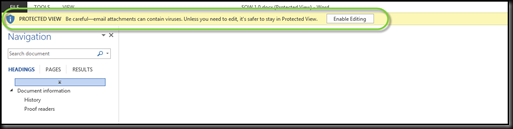
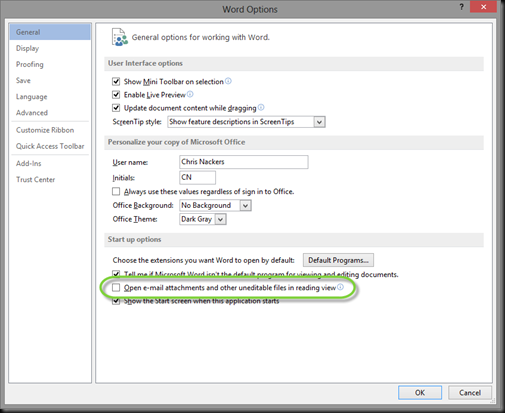
To disable the Reading View. Go to File - Options - General. Uncheck “Open E-Mail attachments and other uneditable files in reading view”
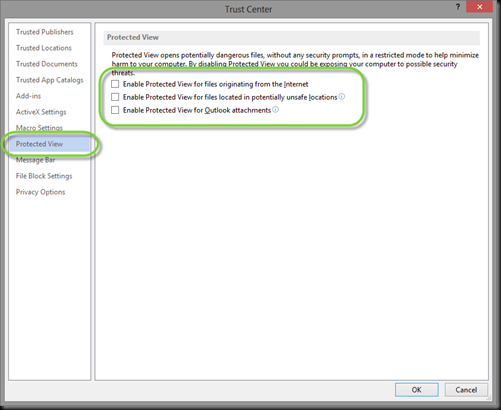
To disable Protected Mode. Go to File - Options - Trust Center - Trust Center Settings. Select Protected View, then clear all the checkboxes.
There, free and clear to open and edit documents without Word telling me what to do! :)