Custom Front End – Name and OU prompt - ConfigMgr/MDT 2010/Pre-execution hook
This information is provided as-is… proceed at your own risk…
Provided with MDT 2010 SCCM integration is a pre-execution hook that allows for a computer name prompt prior to execution of the task sequence. This works great for bare metal installs and avoids the MININT% name. An additional property i wanted to define for bare metal builds was to provide a selection screen where the user can select the target organizational unit (ou) in Active Directory. What i also wanted was validation on the OU prompt so that the user couldn’t go to the next screen without first selecting an OU. It took me awhile to figure out the variable i needed for the OU validation, so thanks to Hector for that. (I don’t claim to be a scripting expert, never have… ) :)
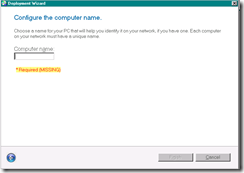
Here is the computer name promt:
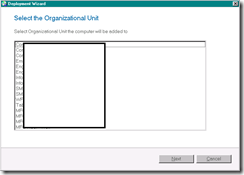
Here is the OU prompt: (blocking out our OU’s)
You’ll need the MDT wizard editor found here:
http://mdtwizardeditor.codeplex.com/.
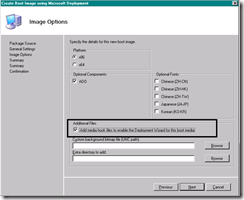
First thing you need to do is make sure that you have a boot image that was created with MDT and you opted to check the pre-execution hook check box.
The files for the pre execution hook are stored here once you’ve installed MDT 2010:
C:\Program Files\Microsoft Deployment Toolkit\SCCM
You will want to work with the Deploy_SCCM_Definition_ENU.xml file. I would NOT recommend modifying the one included with MDT.
In my case, i made a copy of the xml and the vbs script to a c:\custom\mdt_custom\ folder i had created. That is where i worked with the files. Wherever you run the wizardeditor from and wherever the xml you are working with is, it will put the necessary files in that folder, so don’t run this from your desktop or you’ll see a bunch of new files pop up on your desktop!
I used the same file name so i didn’t have to modify my tsconfig.ini in the boot image, but if you want to use a different file name you can. Just make sure to change the ZTImediahook.wsf to call the appropriate file. It’s simple enough to just use the same name and call it a day.
Once you open this file with the wizard editor you will see this:
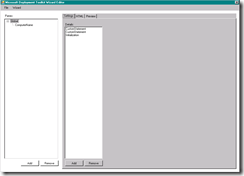
We need to add a new pane called “machineobjectou”
Then create a validation step, and set the value to MachineObjectOU.Value <> “”

Without going into great detail, MachineObjectOU is the task sequence variable you want set for the target OU. By setting this variable we are controlling the OU the computer will end up in.
Next you need to create some HTML code and figure out how you want it to display. You can use the preview pane to see how your changes will work.
Here is the basic HTML code i use:
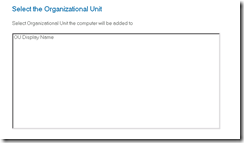
Select the Organizational Unit
Select Organizational Unit the computer will be added to
Which gives you this look:
Next, you will want to click on Wizard – Test
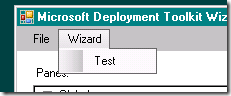
This will let you test the wizard and logic to make sure it acts as expected.
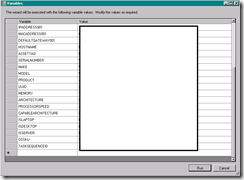
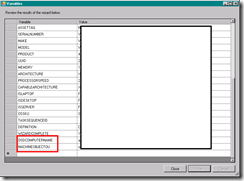
You will be prompted with a list of variables you can set, then you can click run and run the wizard, after going through the wizard panes, you will provided with a list of variables and you should see your new variables listed on the bottom of the list:
First variable list:
Second variable list after running the wizard and you can see the new variables populated:
Now that you’ve hopefully verified your changes work and the wizard runs as expected, we need to get those changes into your boot image. You need to mount your boot.wim and replace the existing \deploy\scripts files with your modified ones. Then commit your changes and unmount the .wim. Then you need to update your distribution points and recreate your task sequence media. That’s the short version at least :) I’m assuming you already know how to mount an image and inject files.
-Chris